> ## Documentation Index
> Fetch the complete documentation index at: https://dub-lemonsqueezy-importer.mintlify.site/llms.txt
> Use this file to discover all available pages before exploring further.
# How to change my Dub billing information?
> Learn how to add a new payment method, change your default payment method, remove a payment method, and change your billing information.
To manage your billing information on Dub, please follow the steps below:
1. Go to your workspace's billing settings page by following this link: [https://app.dub.co/settings/billing](https://app.dub.co/settings/billing)
2. Scroll down to the **Payment Method** section.
3. Here, you can add a new payment method or update your existing payment methods. You can also see which payment method is currently being used as the default payment method.
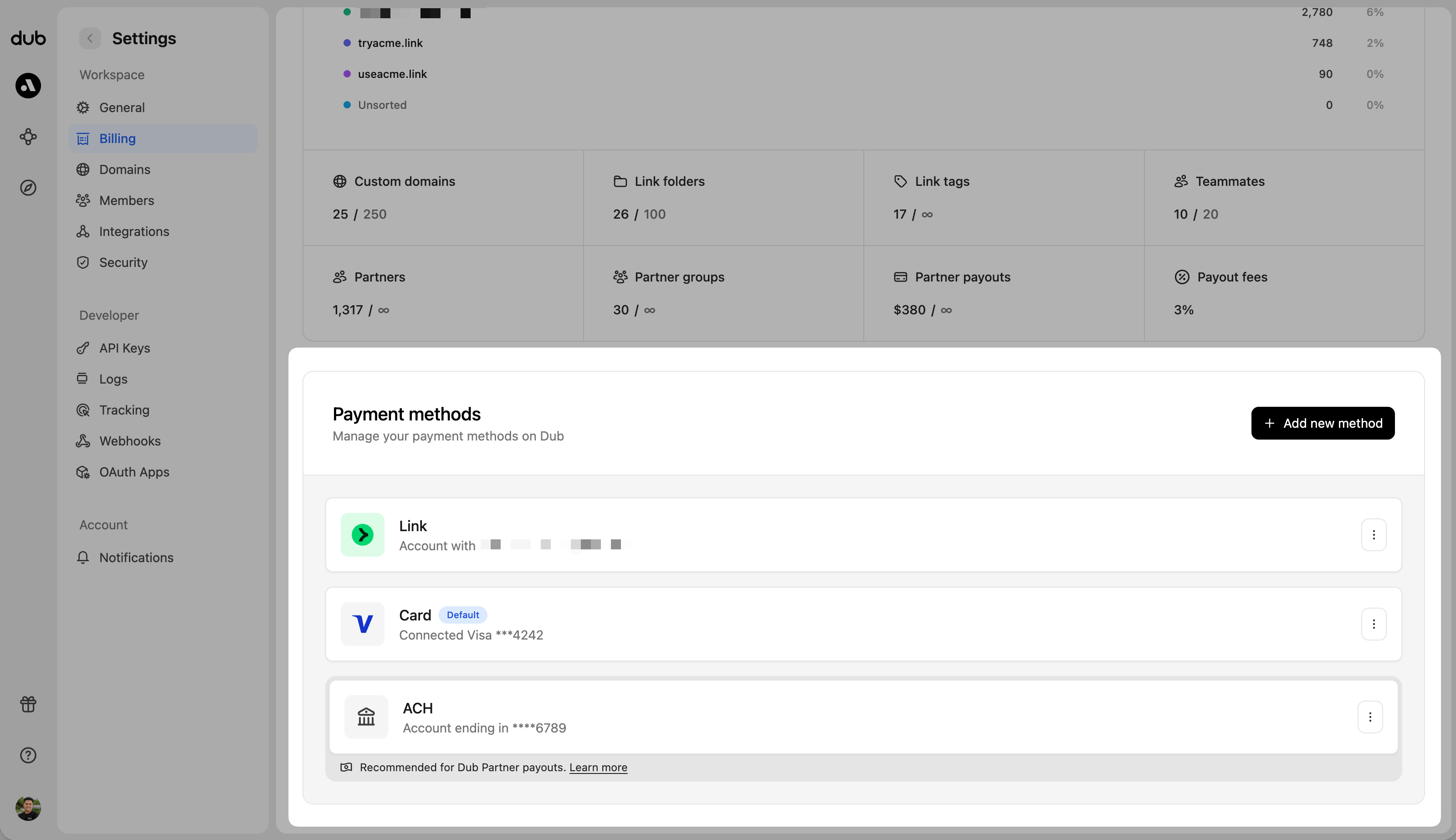 ## Adding a new payment method
To add a new payment method, click on the **Add Payment Method** button.
## Adding a new payment method
To add a new payment method, click on the **Add Payment Method** button.
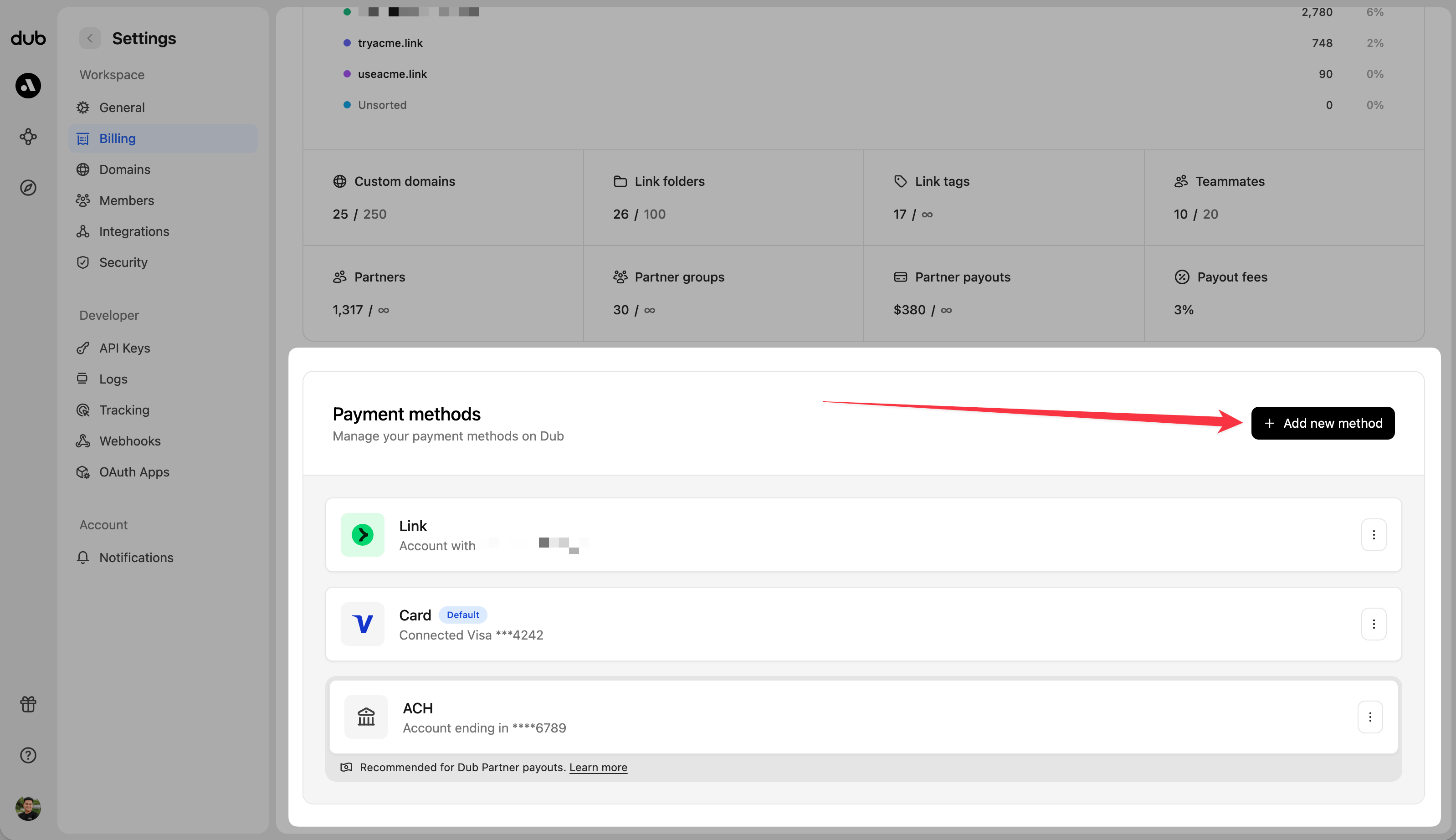 This will redirect you to the Stripe payment method creation flow, where you can enter your payment method details and save it.
## Changing your default payment method
To change your default payment method, click on the payment method you want to set as the default and click on the **Set as default** button.
This will redirect you to the Stripe payment method creation flow, where you can enter your payment method details and save it.
## Changing your default payment method
To change your default payment method, click on the payment method you want to set as the default and click on the **Set as default** button.
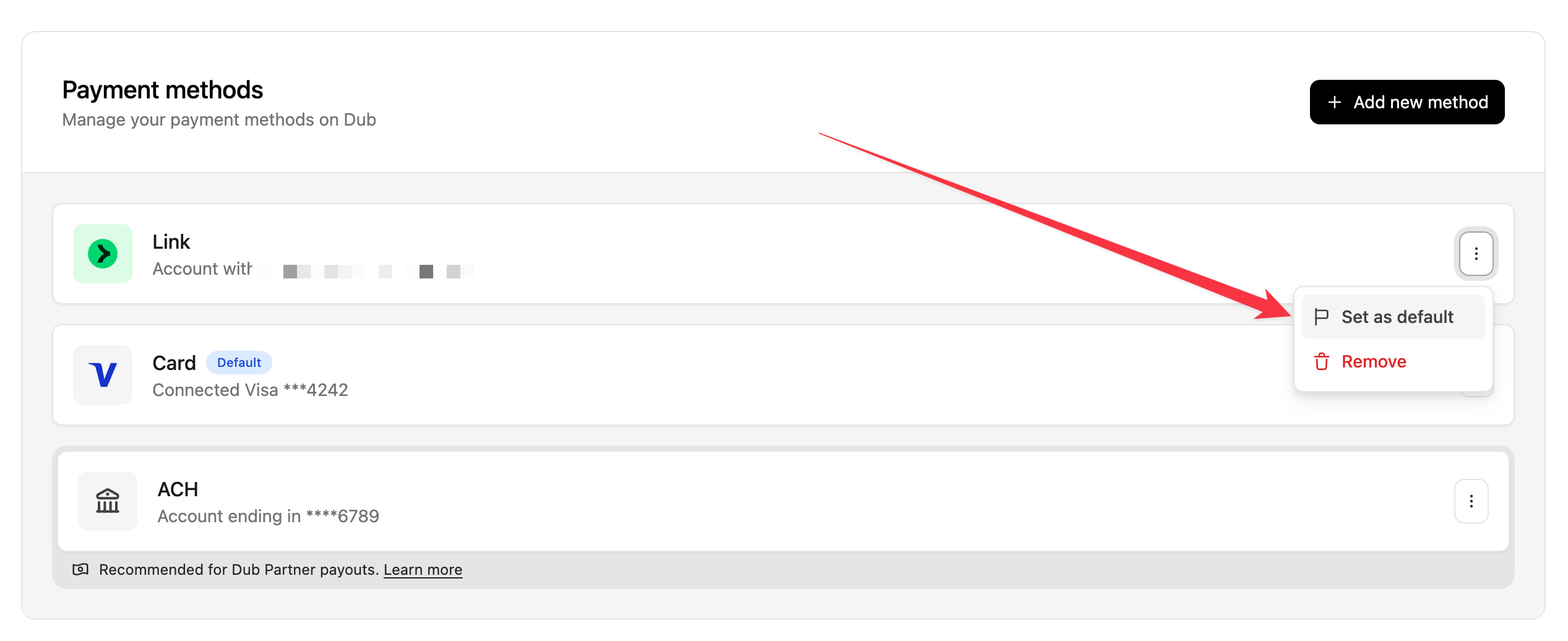 This will set the selected payment method as your default payment method for your [subscription](https://app.dub.co/settings/billing/invoices?type=subscription) and [domain renewal](https://app.dub.co/settings/billing/invoices?type=domainRenewal) payments.
For [partner payouts](/help/article/partner-payouts), Dub will default to your
[connected bank account](/help/article/how-to-set-up-bank-account) if it is
configured (since it has [lower
fees](/help/article/partner-payouts#payout-fees-and-timing)). If you prefer to
have payouts default to your credit card, remove your connected bank account
and set your credit card as the default payment method.
## Removing a payment method
To remove a payment method, click on the payment method you want to remove and click on the **Remove** button.
This will set the selected payment method as your default payment method for your [subscription](https://app.dub.co/settings/billing/invoices?type=subscription) and [domain renewal](https://app.dub.co/settings/billing/invoices?type=domainRenewal) payments.
For [partner payouts](/help/article/partner-payouts), Dub will default to your
[connected bank account](/help/article/how-to-set-up-bank-account) if it is
configured (since it has [lower
fees](/help/article/partner-payouts#payout-fees-and-timing)). If you prefer to
have payouts default to your credit card, remove your connected bank account
and set your credit card as the default payment method.
## Removing a payment method
To remove a payment method, click on the payment method you want to remove and click on the **Remove** button.
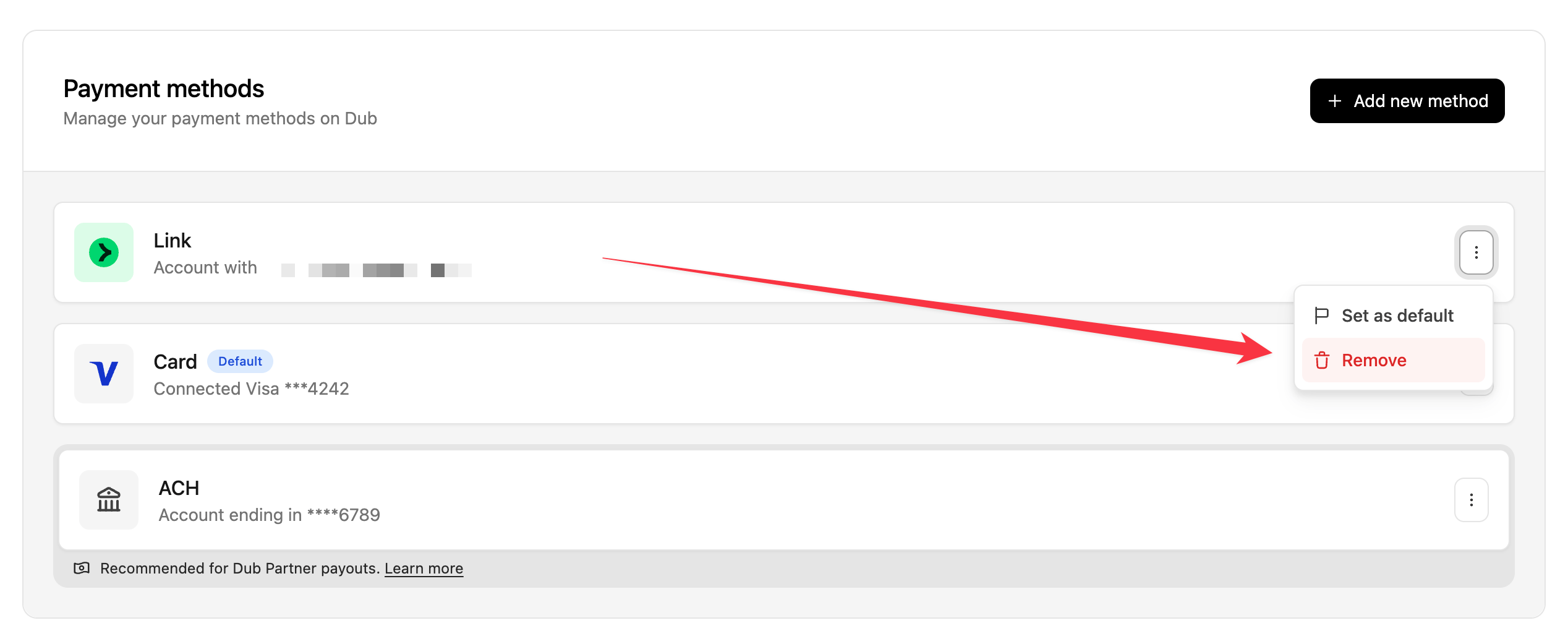 This will remove the selected payment method from your workspace. You can add it back again by [following the steps above](#adding-a-new-payment-method) to add a new payment method.
You won't be able to remove your default payment method if it's the only
payment method in your workspace. To remove your default payment method,
you'll need to add a new payment method as the default first.
## Changing your billing information
If you want to change your billing information (e.g. company name, address, billing email, tax ID), you can do so by clicking on the **Open billing portal** button:
This will remove the selected payment method from your workspace. You can add it back again by [following the steps above](#adding-a-new-payment-method) to add a new payment method.
You won't be able to remove your default payment method if it's the only
payment method in your workspace. To remove your default payment method,
you'll need to add a new payment method as the default first.
## Changing your billing information
If you want to change your billing information (e.g. company name, address, billing email, tax ID), you can do so by clicking on the **Open billing portal** button:
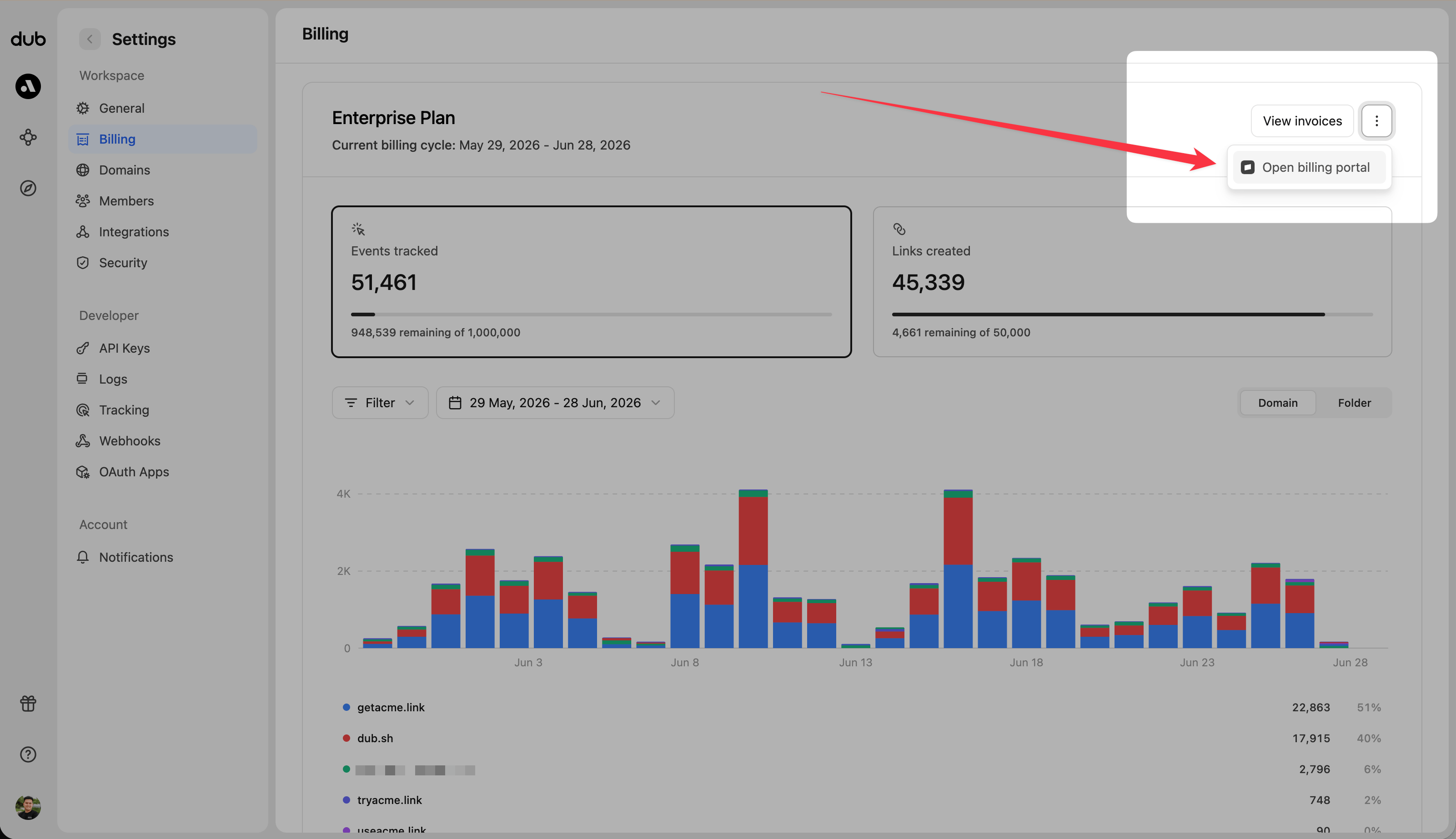 This will redirect you to the Stripe billing portal, where you can change your billing information.